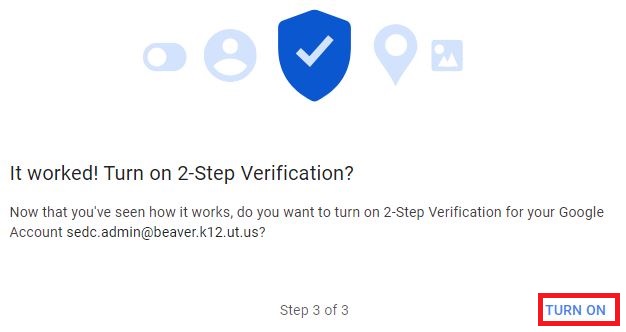
Step 1: Log into your district Gmail account.
 Step 2: Click on the account button in the top right corner.
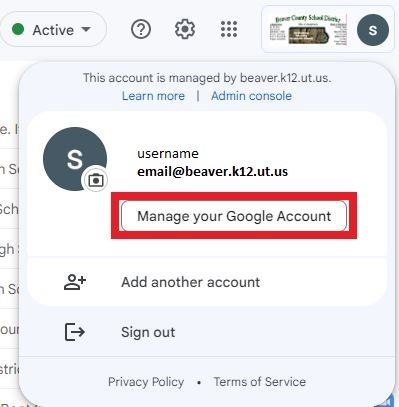
Step 3: Click on “Manage your Google Account” on the dropdown menu.
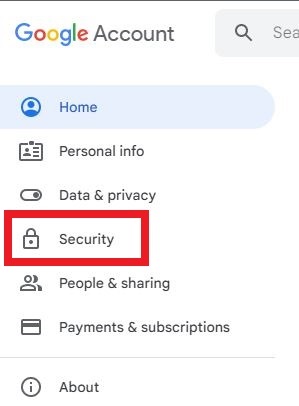
Step 4: Click “Security” on the menu on the left side of the screen.
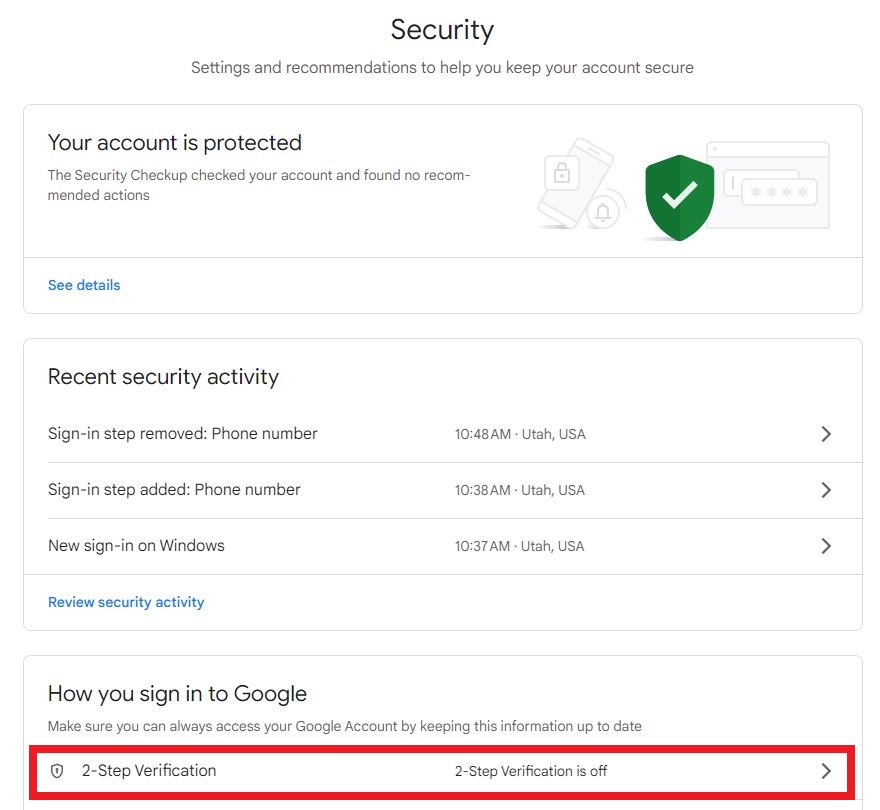 Step 5: Click “2-Step Verification” under the “How you sign in to Google” section.
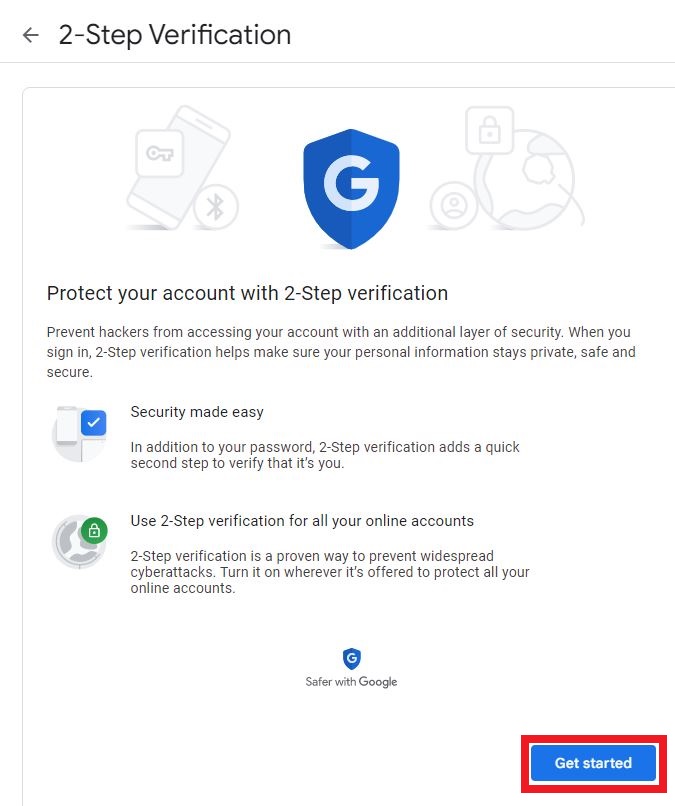 Step 6: Click “Get started”
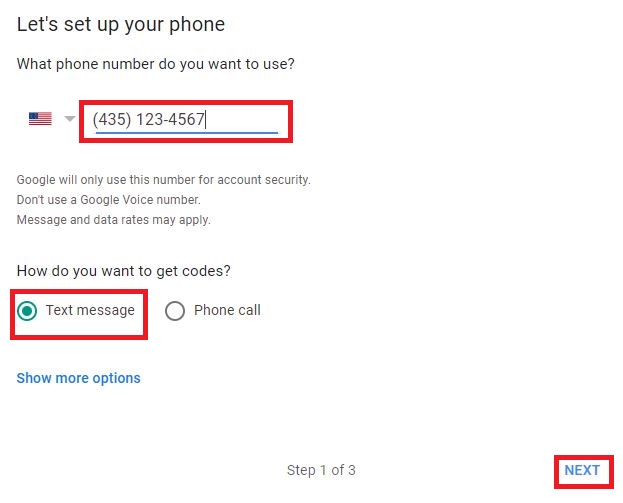
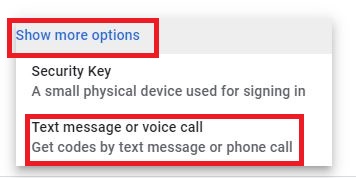
Step 7:
Enter your phone number
Select “Text Message”
Click “Next” in the bottom right corner
Note: If you do not see the “Text Message” option, click on “Show more options” and then click on “Text message or voice call”
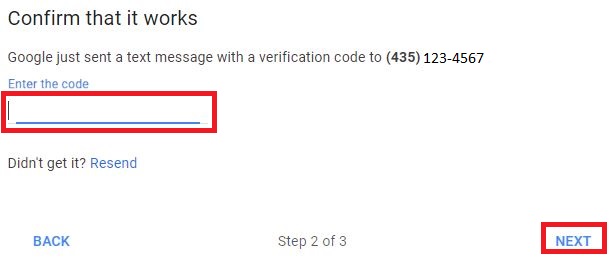
Step 8: Enter the code received on your phone into the section titled “Enter the code”